
Prepare the development environment
Section titled “Prepare the development environment”-
Download and install VSCode
-
Add PlatformIO IDE extension to VSCode
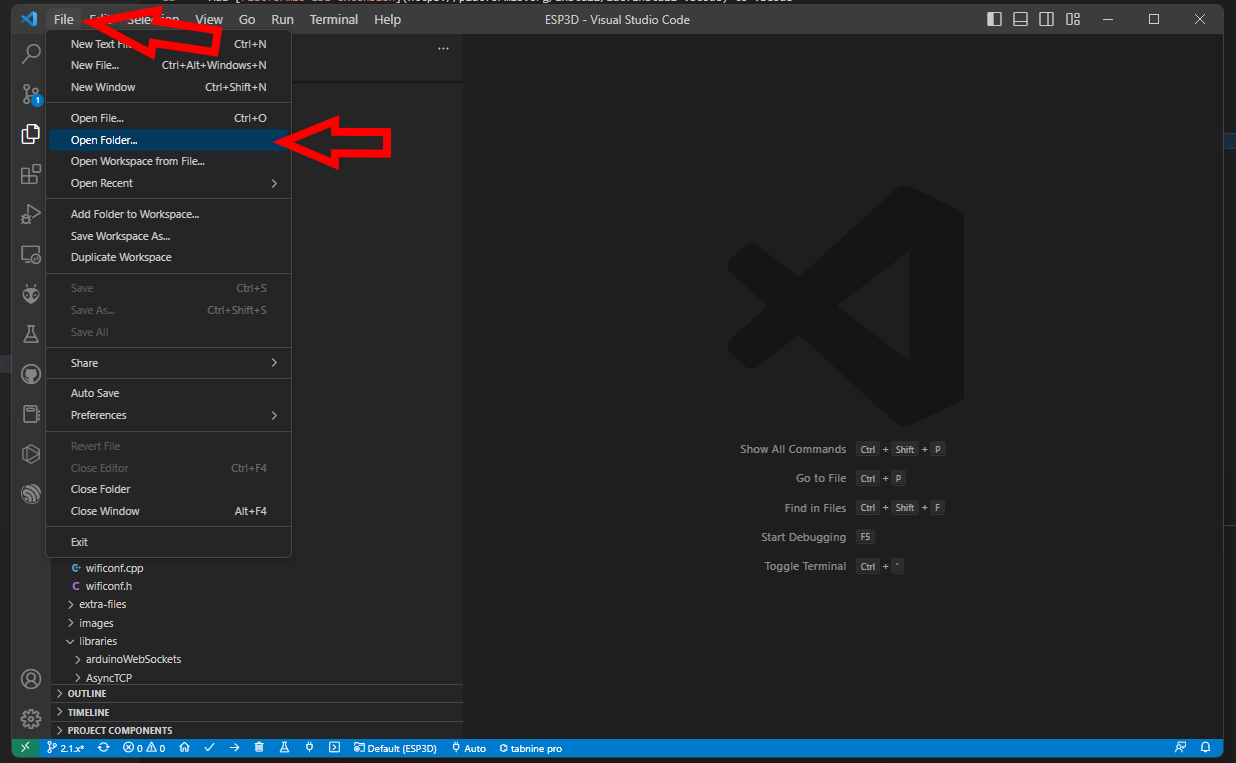
Open the ESP3D directory folder in VSCode
Section titled “Open the ESP3D directory folder in VSCode”The first time you open the project, vscode need to download all necessary files, so be patient
ESP3D configuration
Section titled “ESP3D configuration”Open esp3d/configuration.h and set features you want.
You can also generate it, using the ESP3D configurator, which simplify a lot this step.

See configuration.
Select the target in VSCode
Section titled “Select the target in VSCode”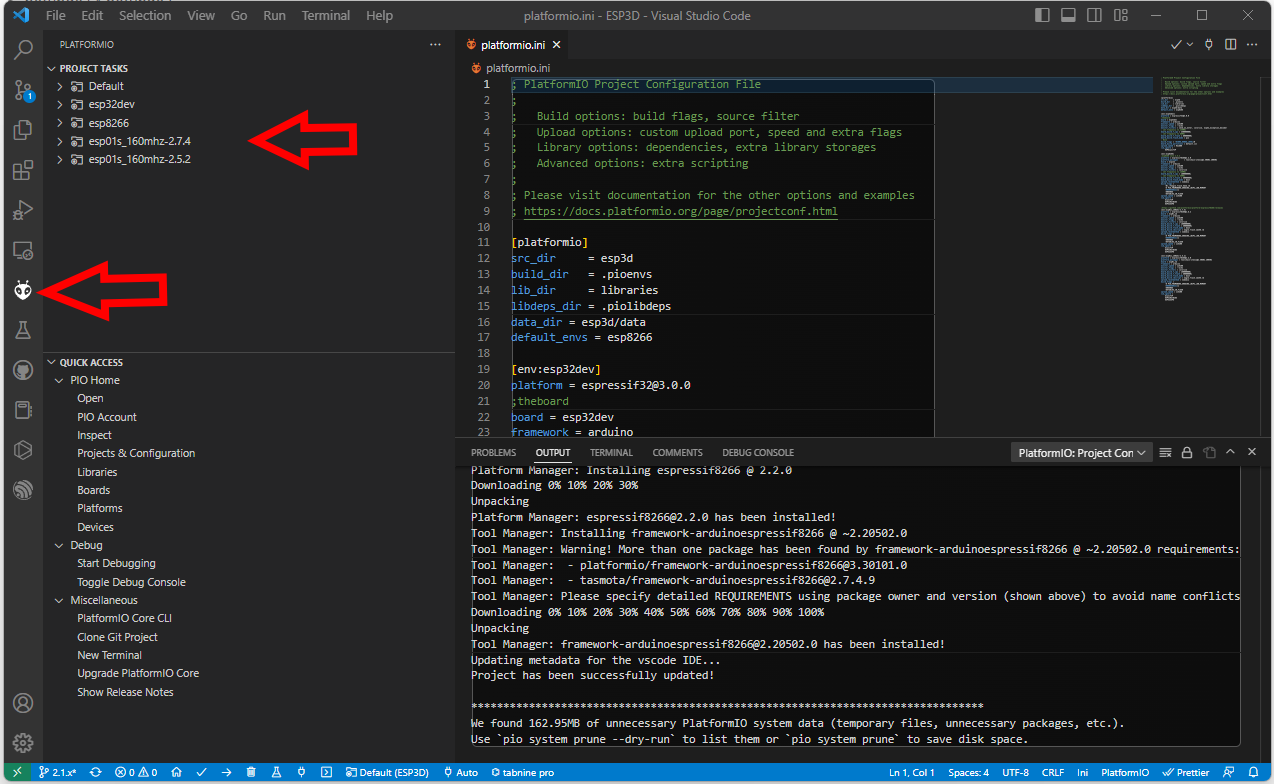
- [env:esp32dev] for ESP32 boards
- [env:esp32cam] for ESP32 Camera boards
- [env:esp32-TTGO_T_Display] for ESP32 boards with TTGO_T display
- [env:esp32-ST7789] for ESP32 boards with ST7789 display
- [env:esp32-s2]for ESP32-S2 boards
- [env:esp32-s3]for ESP32-S3 boards
- [env:esp32-c3]for ESP32-C3 boards
- [env:esp8266] for ESP8266 boards with 4MB flash
- [env:esp01s_160mhz] for ESP8266 boards with 1MB flash
Connect your board
Section titled “Connect your board”Compile and flash your module
Section titled “Compile and flash your module”Use Upload and monitor from the target environment you selected to compile and flash your module.